Monitor every screen
A live grid shows all students who are sharing, with connection and sharing status.

Realcast is a classroom management platform that lets teachers monitor students’ device screens in real time. Students join a Room with a URL or QR code and share their screens; teachers and assistants watch every screen at once, compare work side by side, and show a student’s screen to the whole class. It is not a video conferencing app: it is built for supervising digital classroom work.
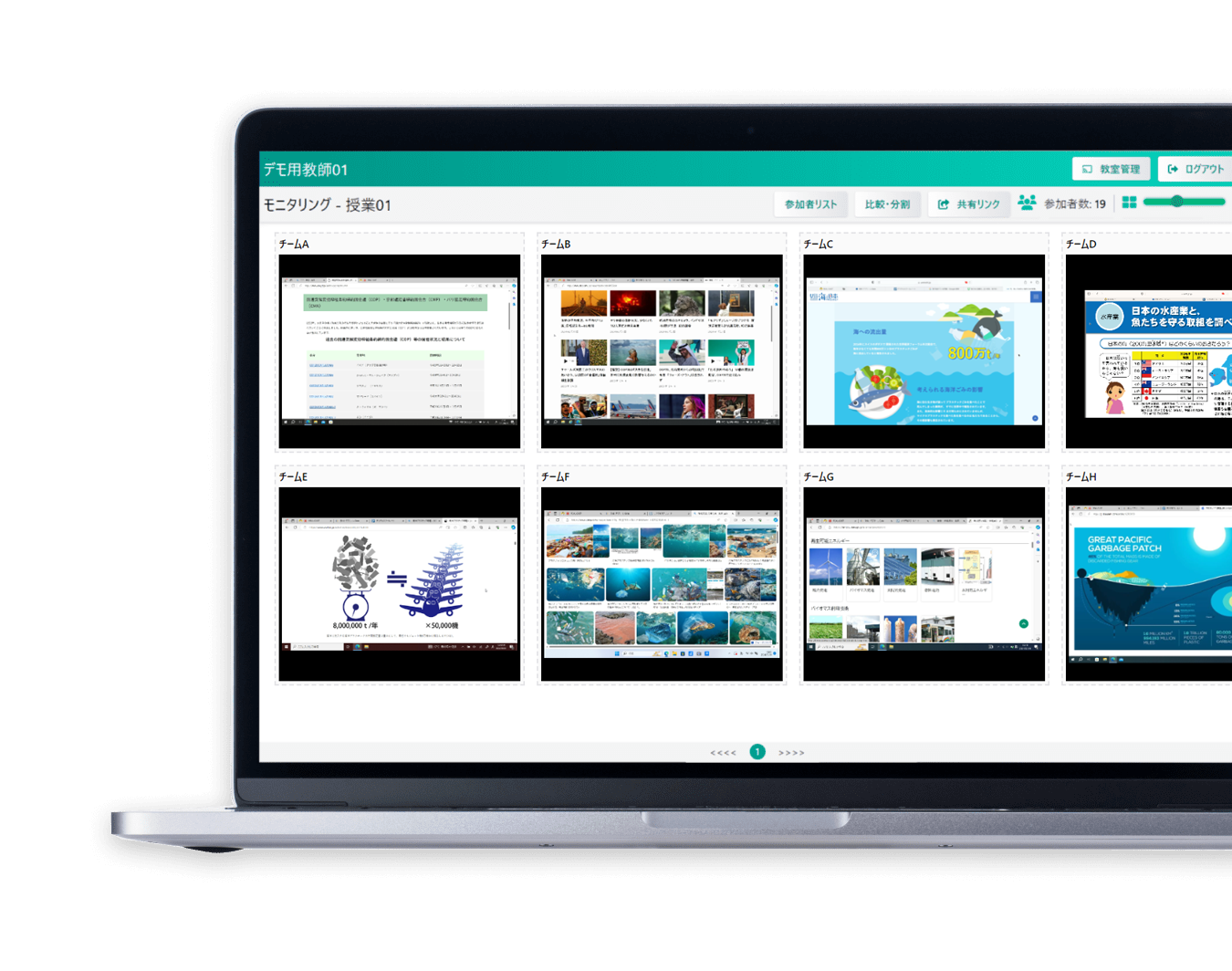
A live grid shows all students who are sharing, with connection and sharing status.
Select a thumbnail to enlarge a student’s screen for a closer look.
Put up to four students’ screens side by side to review progress or answers.
Drag and rearrange screen thumbnails into the layout that suits the class.
Broadcast a selected student’s screen to every device for discussion or presentation.
Export attendance and login/logout records as CSV files in a ZIP, ready from notifications.
The teacher logs in and creates a Room with a name, an expiration date or no limit, and a display quality mode.
The teacher shares the Student URL, the Assistant URL, or a downloadable QR code.
Students enter a display name and start screen sharing from a browser or the Realcast iPad app.
Teacher and assistant monitor in real time; the teacher exports attendance and ends the session.
Only teachers need an account. Assistants join with their own link to help monitor large classes, and students join with just a display name.
| Feature | Teacher | Assistant | Student |
|---|---|---|---|
| Log in with an account | Required | Not required | Not required |
| Create, edit, and delete Rooms | ✓ | – | – |
| Share the URL or QR code | ✓ | – | – |
| Monitor, focus, and compare screens | ✓ | ✓ | – |
| Show a student’s screen to the class | ✓ | ✓ | – |
| Share own screen | ✓ | – | ✓ |
| Disconnect a participant | ✓ | – | – |
| Export participant information | ✓ | – | – |
| Switch language (English / Japanese) | ✓ | ✓ | ✓ |
The RealCAST Enterprise Administration site manages the organization behind every classroom: Tenant → School → Classroom, with Superadmin, Tenant Admin, and School Admin roles that each see only their own scope.
Each organization is a separate tenant with its own schools, licenses, subdomain, and contract period.
Connect a tenant to an external OpenID Connect identity provider for teacher sign-in.
Launch Realcast from an LTI 1.3-compatible learning platform.
Register many teachers at once from a CSV file, with a preview before saving.
Set unlimited sessions or 1–9 hours per school, with a countdown and one-hour extensions.
Search and export usage history, and review roster synchronization results.
| Teacher / Assistant | Student · Windows | Student · iPad | Student · Chromebook | |
|---|---|---|---|---|
| Operating system | Windows 10 or 11 | Windows 10 or 11 | iPadOS 14.0 or later | Current ChromeOS |
| Memory | 8 GB or more | 4 GB or more | Device standard | 4 GB or more |
| Processor | Intel Core i3 or higher | Intel Core i3 or higher | Device standard | Device standard |
| Internet | 10 Mbps or more | 1 Mbps or more | 1 Mbps or more (stable Wi-Fi) | 1 Mbps or more |
| How to join | Chrome 132+ or Edge 136+ | Chrome 132+ or Edge 136+ | Realcast app (App Store) | Google Chrome, no install |
Tell us about your school or education service, and we’ll share more details.